Manage Restrictions
Configure the three MDM restriction keys that control app behavior for managed Vylos deployments.
These restriction keys are separate from the optional notificationsEnabled, appearance, and appIcon preference overrides and the organization-information fields. See Managed App Configuration for the complete key contract.
Summary Table
| Key | Type | Default When Absent | Description |
|---|---|---|---|
allowManualTunnels | Boolean, number, or string | true | Controls whether users can manage app tunnels. |
allowSettings | Boolean, number, or string | true | Controls whether users can access app settings. |
blockJailbrokenDevices | Boolean, number, or string | false | Blocks app usage and all Vylos VPN connections on jailbroken iOS devices. |
Vylos accepts true and 1 as true, and false and 0 as false. String values are trimmed and compared case-insensitively.
Missing or malformed values use the key's documented default.
allowManualTunnels
- Type: Boolean, number, or string (parsed as boolean)
- Default when absent:
true
Behavior When Set to false
When this restriction is active, users are prevented from creating, editing, or deleting app tunnels. The following changes take effect:
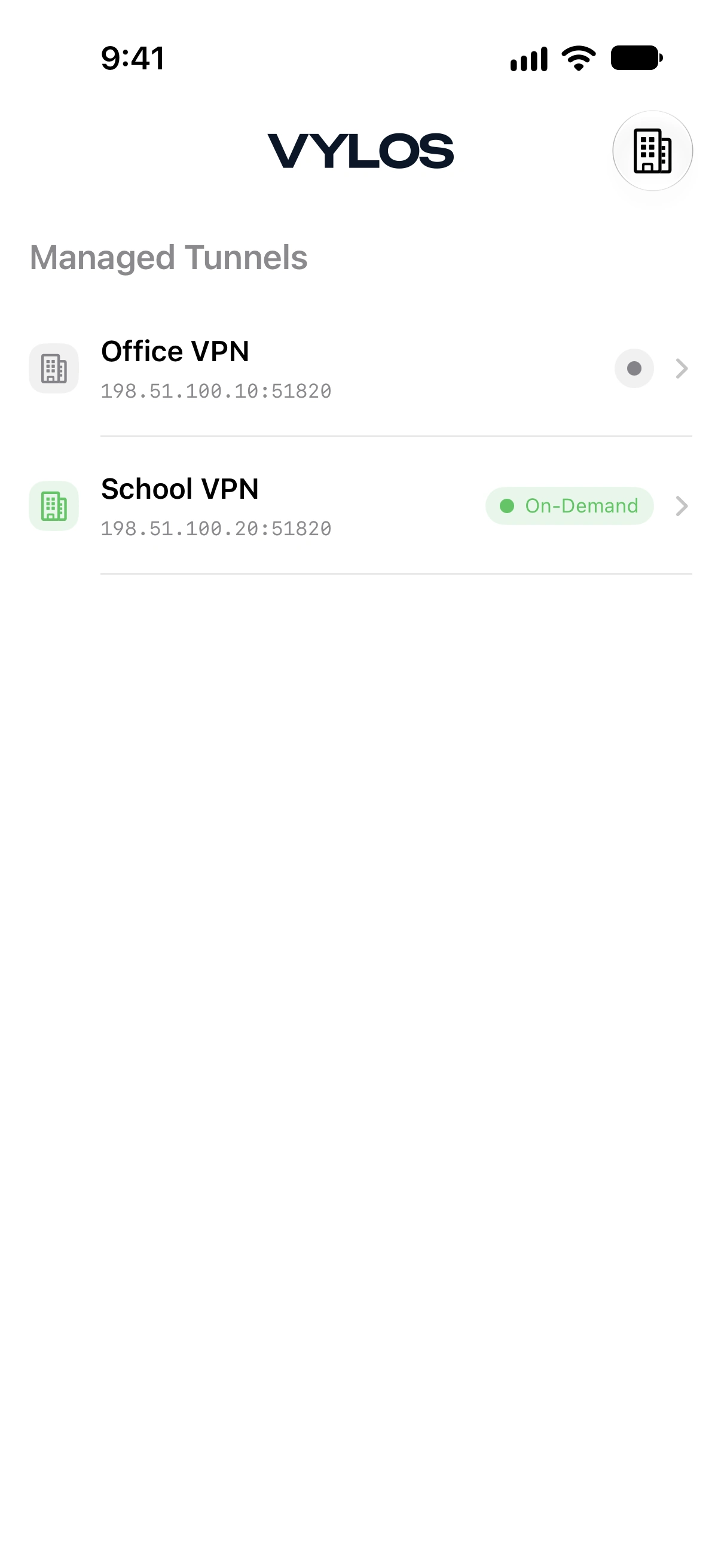
- Home view. The "My Tunnels" section is hidden entirely. The Add button for creating new tunnels is also hidden.
- Tunnel creation. The add-tunnel screen is blocked. Users can't add tunnels through file import, QR code scanning, or manual creation.
- Tunnel editing. The edit-tunnel screen is blocked. Users can't modify existing tunnel configurations.
- System VPN entries. All app tunnel system VPN entries are suspended, preventing users from toggling them through system VPN settings.
- Shortcuts and discovery. App tunnels are removed from the Shortcuts tunnel picker, Siri suggestions, Spotlight, and Home Screen quick actions. Vylos also refuses a previously saved shortcut that still references a suspended tunnel; the managed-configuration app-lock bypass does not override this restriction.
- Data preservation. Tunnel data is preserved locally on the device. No tunnel configurations are deleted when this restriction is applied.
- Automatic restoration. When the restriction is lifted (the key is removed or set back to
true), all previously suspended tunnels are automatically restored, including their system VPN entries.
Interaction with Managed Tunnels
This restriction only affects app tunnels created by the user within Vylos. Managed tunnels installed through MDM or directly from a .mobileconfig profile remain visible and functional regardless of this setting.
See Deploy Managed Tunnels for details.
allowSettings
- Type: Boolean, number, or string (parsed as boolean)
- Default when absent:
true
Behavior When Set to false
When this restriction is active, the entire Settings area of the app is locked down. The following changes take effect:
- Toolbar. The Settings button is hidden from the app toolbar. Users have no way to navigate to Settings.
- Settings screen. If the Settings screen is accessed by any means, the entire content is replaced with the message: "Settings are managed by your organization."
- Disabled features. All settings are inaccessible, including:
- Start at Login (macOS only)
- App protection method (Face ID, Touch ID, TOTP)
- TOTP setup and management
- App appearance (System, Light, Dark)
- The Language pane's shortcut to system language settings
- App icon theme selection
- Notification preferences
- Export archive
- Log viewer
- Legal and license information
- Version information
When allowSettings remains true, any individual preference supplied through notificationsEnabled, appearance, or appIcon stays visible but read-only; unrelated settings, including the operating system's per-app Language setting, remain available.
blockJailbrokenDevices
- Type: Boolean, number, or string (parsed as boolean)
- Default when absent:
false - Since version: 1.1.0
- Platform: iOS only. The restriction has no effect on macOS or visionOS.
Behavior When Set to true
When this restriction is active and the device is detected as jailbroken, the app displays a full-screen organization policy message. The user can't dismiss this screen or access any app functionality.
Vylos immediately disconnects all of its active tunnels, disarms their On-Demand triggers, and refuses every new connection attempt while the policy block remains active. App-created tunnels are also hidden from Shortcuts discovery, and saved tunnel shortcuts are refused.
Detection Approach
Vylos combines checks for jailbreak-related artifacts, registered tooling, sandbox integrity, and runtime injection. A positive result from any layer is sufficient to enforce the managed policy, while the implementation details remain intentionally undisclosed so the public guide does not become a bypass checklist.
Data Safety
No tunnel configuration data is deleted when the jailbreak block is active. Runtime connections are stopped and On-Demand is disarmed, while tunnel configurations, keys, and app settings remain intact and become accessible again if the restriction is removed or the jailbreak condition is resolved.
For more details on the jailbreak detection policy, see Enforce Jailbreak Policy.