Set Up Notifications
Set up local notifications to stay informed about VPN tunnel disconnection and reconnection events.
Enabling Notifications
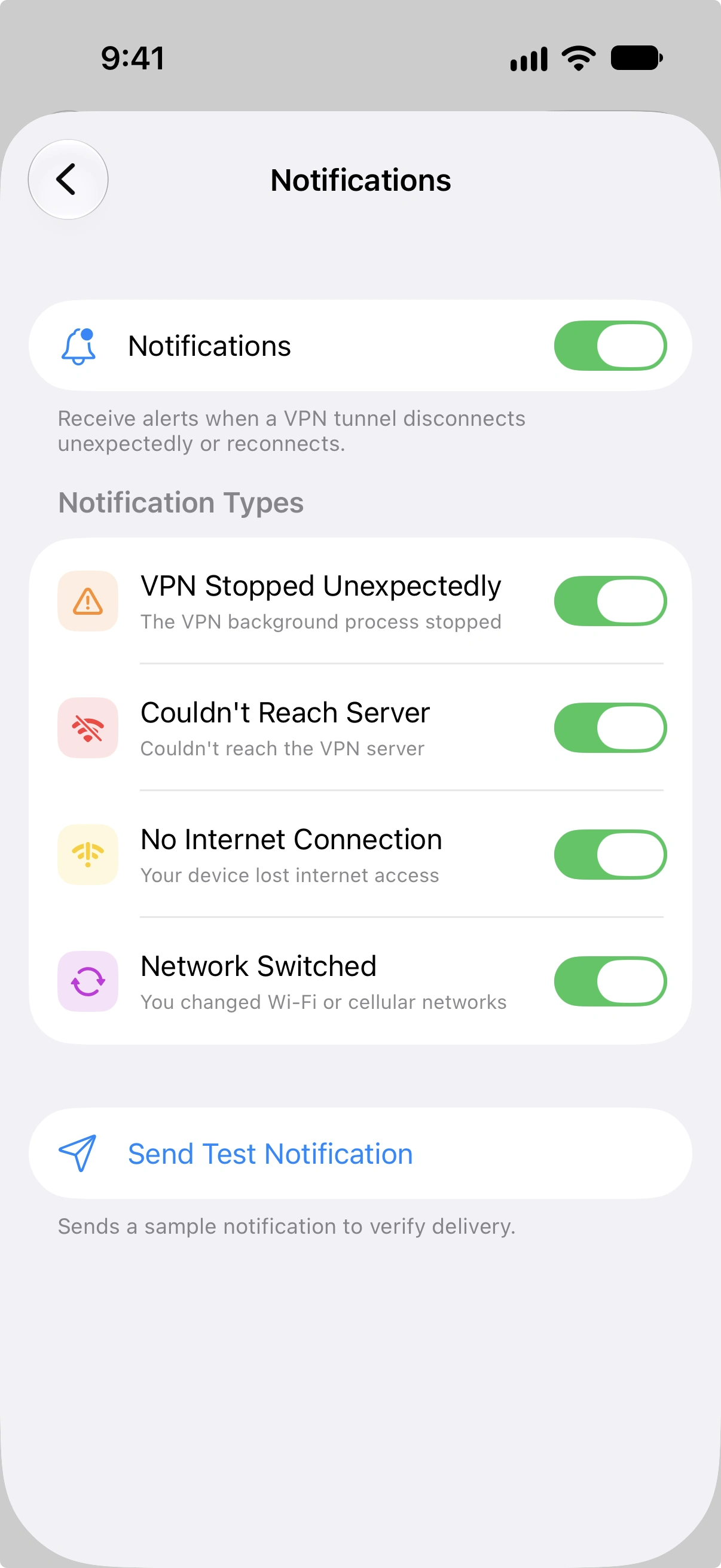
Go to Settings > Notifications to configure notification preferences. A global master toggle controls whether notifications are enabled or disabled.
Turning this on for the first time will prompt you to grant system notification permission.
When you enable notifications for the first time, all four notification types are automatically turned on. You can then disable individual types as needed.
Notification Types
Each notification type can be toggled independently:
| Notification | Description |
|---|---|
| VPN Stopped Unexpectedly | The VPN background process stopped. |
| Couldn't Reach Server | Couldn't reach the VPN server. |
| No Internet Connection | Your device lost internet access. |
| Network Switched | You changed Wi-Fi or cellular networks. |
Notifications can still arrive while Vylos isn't open.
Reconnect Action
Disconnect notifications for user-created tunnels include a Reconnect action button. Tap it to bring the tunnel back up through Vylos.
Managed tunnels do not include the action because their manual connection control lives in Apple Settings.
The action hands off to the same toggle the app uses internally, so the tunnel comes up through the normal activation path.
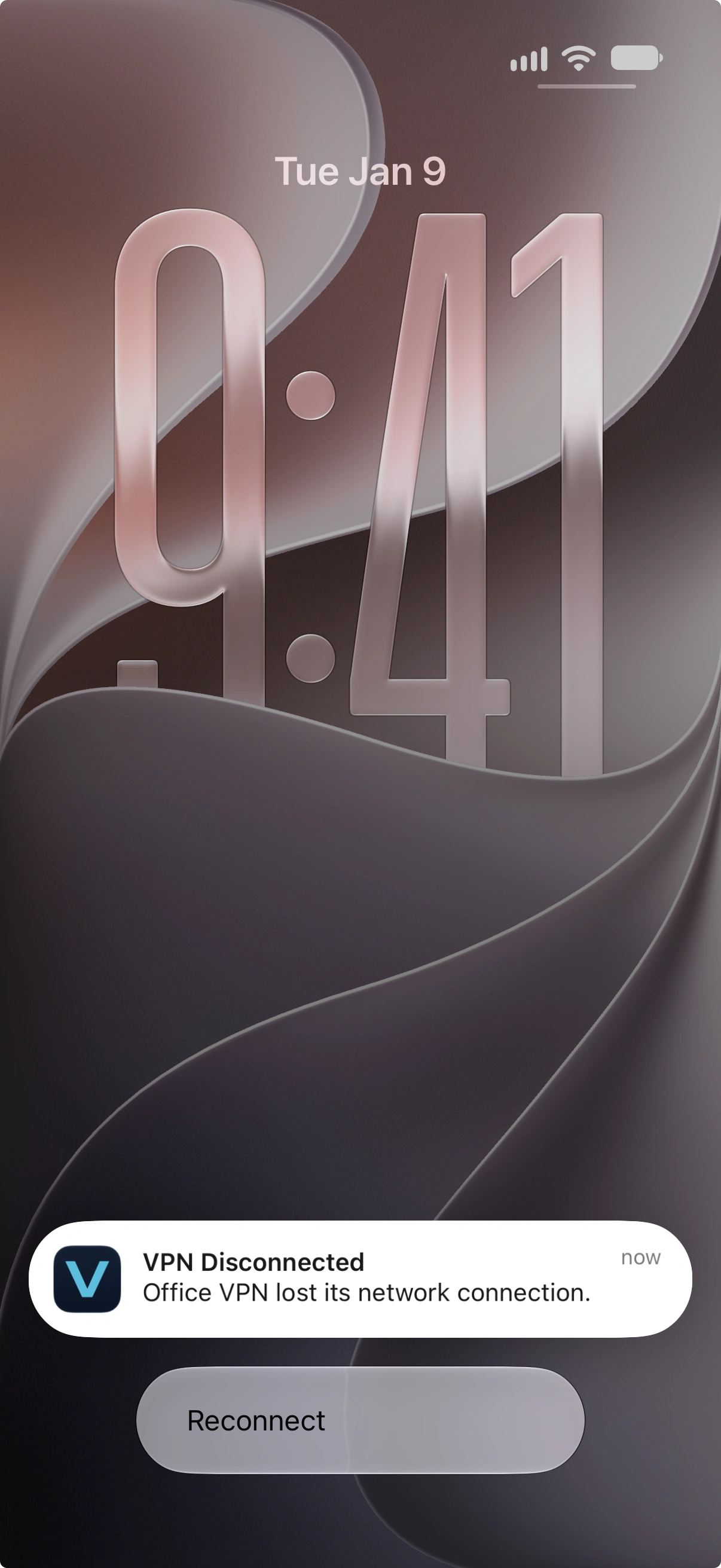
Disconnect notifications also play a sound, while the follow-up reconnect notification is silent to reduce noise during network transitions.
Notification text uses the tunnel's display name. The VPN endpoint or peer URL is never used as a user-facing name; if Vylos cannot resolve a saved name, it uses the generic label Tunnel.
Throttling
To prevent a burst of alerts during flap storms, Vylos waits 15 seconds before reporting a connectivity loss and sends at most one disconnect notification every 15 minutes across all disconnect reasons. Recovery is reported immediately only when Vylos displayed the matching disconnect.
Initial connection and brief offline/online transitions stay silent. Stable notification identifiers keep repeated status alerts from stacking.
Test Notification
A Send Test Notification button is available in the notification settings screen. When a tunnel is connected, the app asks its running VPN component to post the notification.
When no VPN component is running, the app posts the sample locally so delivery permission can still be checked.
The connected-tunnel path verifies both notification delivery and app-to-extension messaging. The local fallback verifies notification delivery only.
Test notifications request a banner, Notification Center entry, and sound even while Vylos is in the foreground, subject to the notification presentation settings chosen in the operating system.