Set Up On-Demand
Configure tunnels to connect automatically when your device joins specific networks or network types.
Set It Up
- Open a user-created tunnel and choose Edit, or begin creating a new tunnel.
- Open the Vylos tab in the tunnel form.
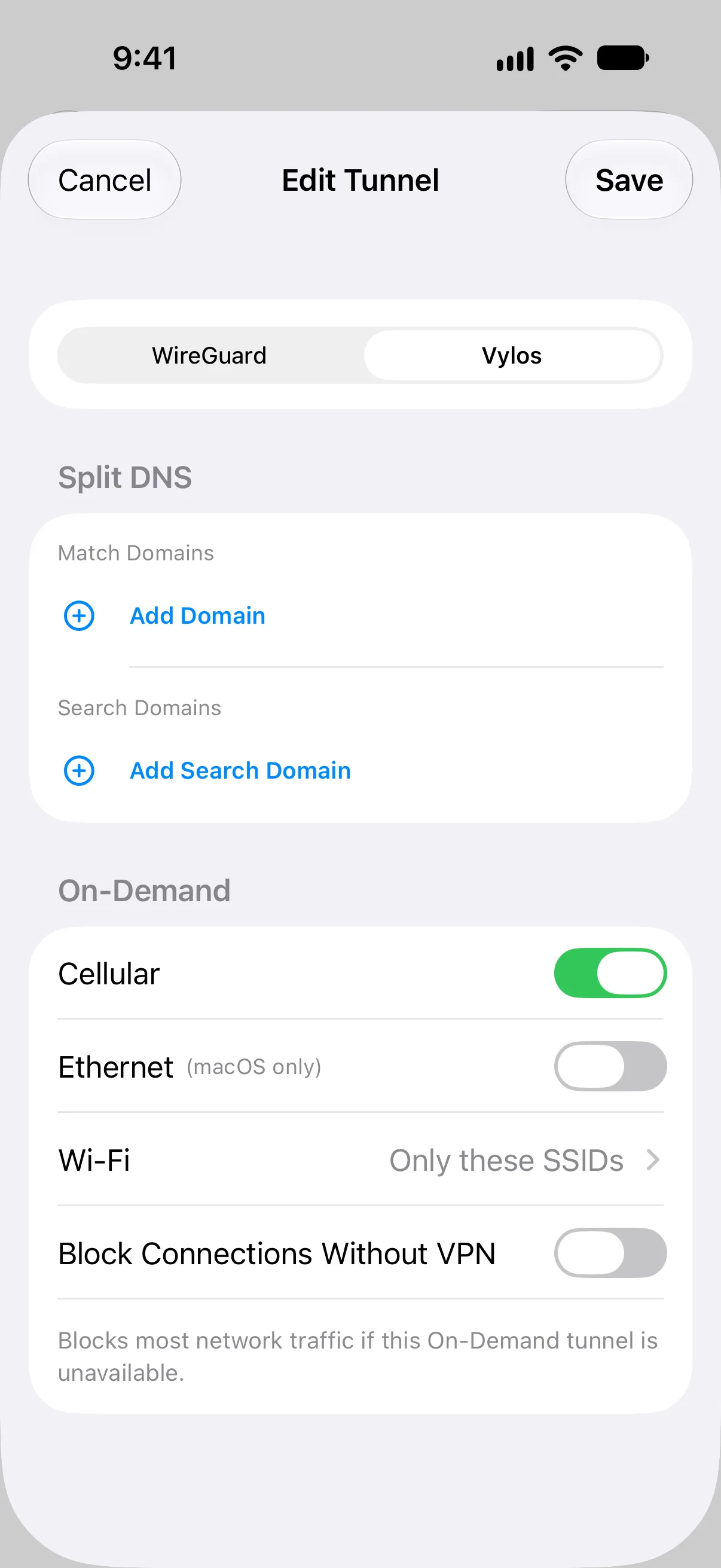
- Turn on the supported network conditions you want the tunnel to monitor.
- For Wi-Fi, choose Any SSID, Only These SSIDs, or Except These SSIDs, then provide any required network names.
- Optionally turn on Block Connections Without VPN.
- Save the tunnel and enable its On-Demand toggle.
On-Demand rules belong to an individual tunnel. Managed tunnels receive their rules from the organization's VPN profile and cannot be edited inside Vylos.
How It Works
When On-Demand rules are armed, the operating system monitors network changes and activates or deactivates the tunnel without manual intervention. Vylos stores these rules alongside Split DNS in the tunnel's Vylos settings.
Cellular
The Cellular toggle controls whether the tunnel activates automatically on a cellular data connection, and iOS evaluates this rule. macOS and visionOS show the value with an iOS only annotation so you can edit, import, and export one universal configuration without losing it.
Current Apple Vision Pro hardware has no cellular interface, so this rule cannot trigger on visionOS.
note
Apple's Network Extension interface enum includes a cellular case for portable rule data. The case matches only when the device's current primary network interface is cellular; its presence in the visionOS SDK does not mean Vision Pro contains a cellular radio.
Ethernet
The Ethernet toggle controls whether the tunnel activates automatically on Ethernet, and macOS evaluates this rule. iOS and visionOS show the value with a macOS only annotation and preserve it for use when the same configuration is moved to a Mac.
All three apps expose both toggles. A platform ignores an unsupported rule while retaining its value in the tunnel and exported .vylos file.
On current Vision Pro hardware, Wi-Fi is the only on-demand network interface that can match.
Wi-Fi
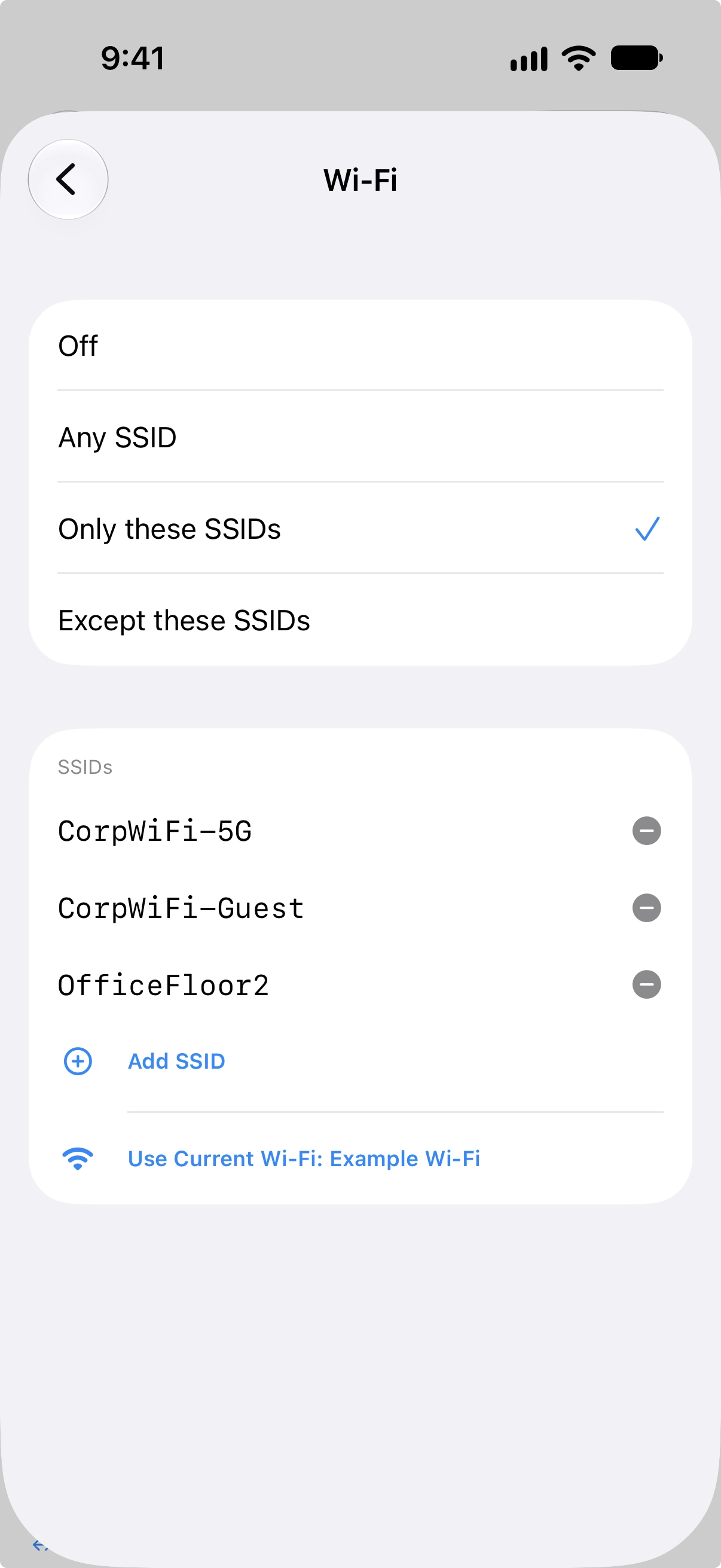
The Wi-Fi setting has four modes:
| Mode | Behavior |
|---|---|
| Off | The tunnel does not activate automatically on Wi-Fi. |
| Any SSID | The tunnel activates on any Wi-Fi network. |
| Only these SSIDs | The tunnel activates only when connected to one of the listed SSIDs. |
| Except these SSIDs | The tunnel activates on all Wi-Fi networks except the listed SSIDs. |
When "Only these SSIDs" or "Except these SSIDs" is selected, you must provide at least one SSID. The form will display a validation message if the list is empty.
Kill Switch
Turn on Block Connections Without VPN to use Apple's system-level all-network routing for that tunnel. If an armed On-Demand tunnel becomes unavailable, the operating system blocks most traffic instead of immediately falling back to the unprotected network.
The control becomes available after you configure at least one On-Demand rule. Turning off the final rule also turns off the kill switch because an automatically monitored tunnel is required for the fail-closed behavior Vylos promises here.
The setting applies only to the selected user-created tunnel and is stored in its .vylos file. For a managed tunnel, the organization controls the equivalent Apple IncludeAllNetworks profile value and Vylos displays it as read-only.
How Allowed IPs Affect the Kill Switch
The kill switch and AllowedIPs have separate jobs. The kill switch tells the operating system not to bypass the VPN, while AllowedIPs still determines which peer can carry a destination under WireGuard's routing model. Vylos does not add, remove, or broaden AllowedIPs when you turn on the kill switch.
Vylos examines the combined AllowedIPs from every peer and explains the resulting policy in the tunnel editor and tunnel details:
| Combined peer routes | What can connect with the kill switch on | Vylos label |
|---|---|---|
| All IPv4 and IPv6 addresses | IPv4 and IPv6 use the VPN. | Full-Tunnel Protection |
| All IPv4 addresses only | IPv4 uses the VPN; IPv6 is blocked unless an IPv6 route is also listed. | Restricted Network Access |
| All IPv6 addresses only | IPv6 uses the VPN; IPv4 is blocked unless an IPv4 route is also listed. | Restricted Network Access |
| Selected networks or hosts | Only destinations inside those routes can connect, even while the VPN is connected. | Restricted Network Access |
| No routes | Ordinary IP traffic is blocked. | No Outgoing Routes |
The usual dual-stack full-tunnel value is 0.0.0.0/0, ::/0. Equivalent coverage split across peers or prefixes, such as two IPv4 /1 routes, is also recognized as full coverage.
DNS servers must also fall inside at least one peer's AllowedIPs. If a configured DNS server has no matching route, Vylos warns that the server will be blocked. This is especially important for split-tunnel configurations: keep the restricted route set if the tunnel is intentionally an allowlist, but include every DNS server and private destination that must remain reachable.
info
Apple excludes traffic required for network control and certain device services from all-network VPN routing. Depending on the platform and profile, this can include DHCP, captive-portal negotiation, some cellular services, and companion-device communication. The kill switch therefore blocks most ordinary app traffic but is not a claim that every system packet enters the VPN. See Apple's includeAllNetworks documentation.
On-Demand Tunnel Behavior
When on-demand rules are enabled for a tunnel, the tunnel status works differently from a standard tunnel:
- On-Demand (yellow) — The tunnel's on-demand rules are active, but the tunnel is not currently connected. The system is monitoring network conditions and will connect when a matching network is detected.
- Connecting — A matching rule has asked the operating system to start the tunnel.
- On-Demand (green in the Home list) / Connected (green in tunnel details) — The tunnel is connected because the current network matches an on-demand rule. The list preserves the automatic-activation summary, while the detail screen reports the live connection state.
- Disconnecting — The current connection is being stopped after its trigger withdrew or the user disabled automatic activation.
- Disconnected (gray) — The tunnel still has on-demand rules configured, but automatic activation has been turned off.
The toggle switch for an on-demand tunnel enables or disables the on-demand rules rather than directly connecting or disconnecting the tunnel.
Automatic Re-Evaluation on App Foreground
When the app returns to the foreground, Vylos checks whether the operating system still has each tunnel's on-demand rules armed and repairs that state if needed. The operating system then decides whether to connect based on the current network and the tunnel's rules; Vylos does not force a connection when those rules do not match.
On-Demand Clash Detection
When two or more enabled tunnels have overlapping On-Demand rules, Vylos displays a warning banner at the top of the tunnel list on iOS, macOS, and visionOS. Overlapping rules can cause unpredictable behavior because the system may not know which tunnel to activate.
The screenshots below show the iOS layout.
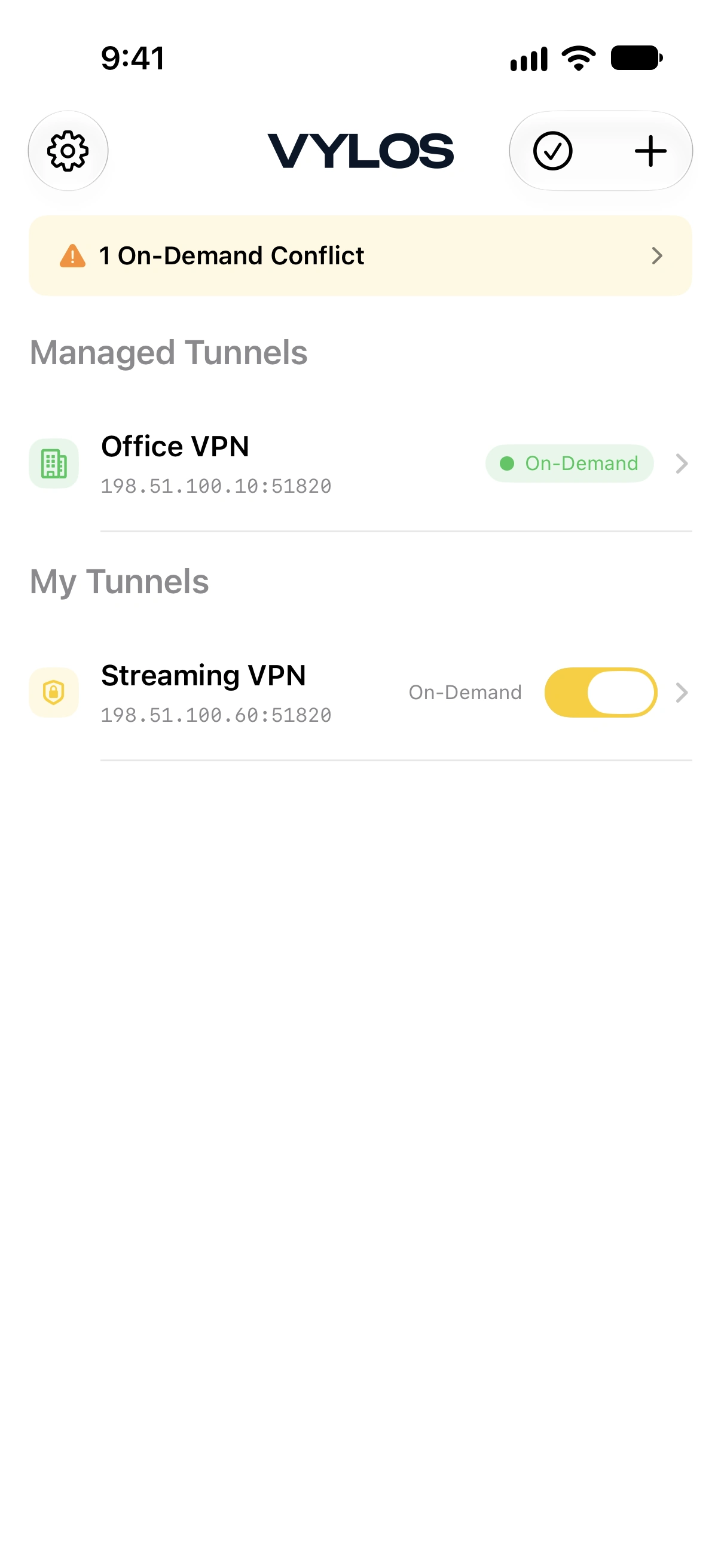
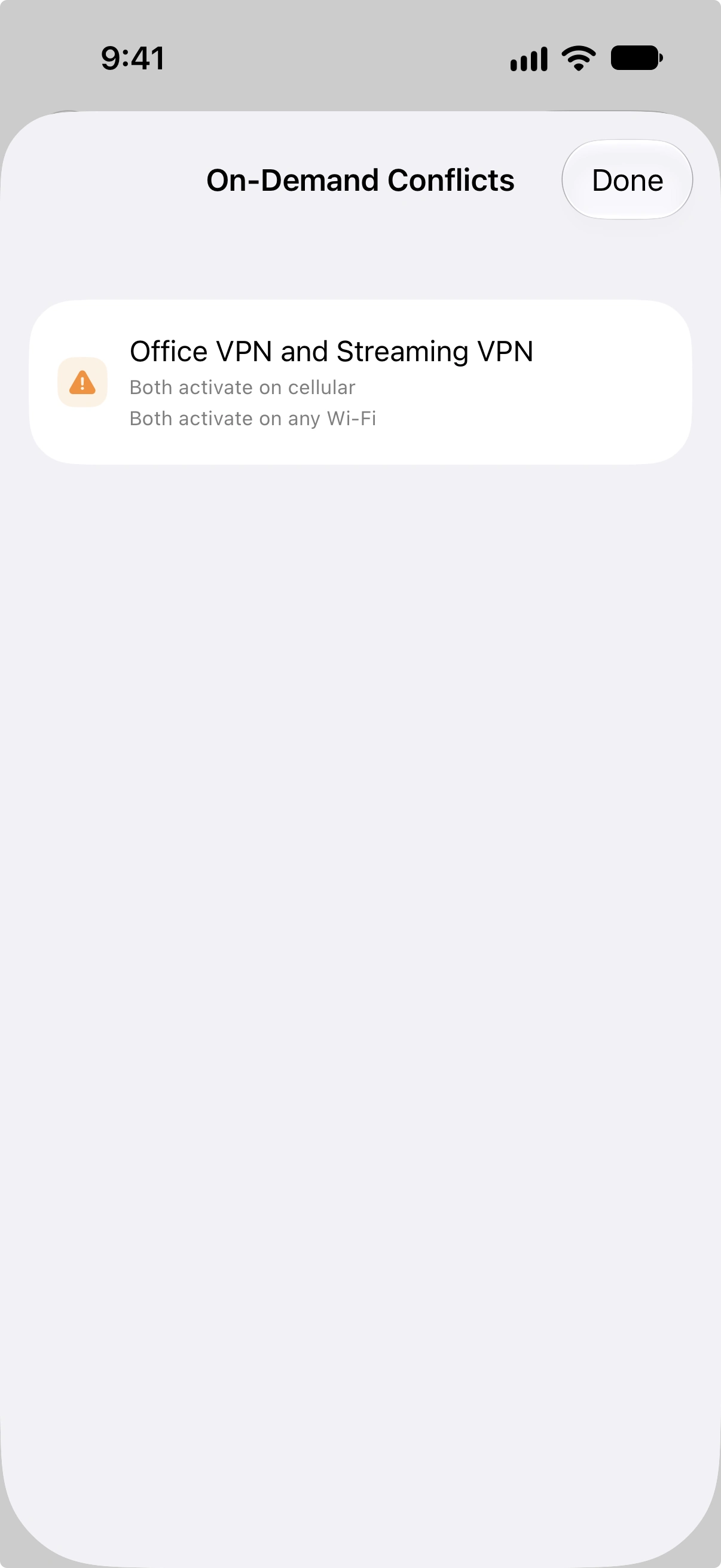
Open the warning banner to see the full list of conflicts. Each conflict entry shows which two tunnels clash and why.
Clash Types
| Clash Type | Description |
|---|---|
| Cellular overlap | Both tunnels are set to activate on cellular. |
| Ethernet overlap | Both tunnels are set to activate on Ethernet on macOS. |
| Wi-Fi Any overlap | Both tunnels are set to activate on any Wi-Fi network. |
| Specific SSID overlap | Both tunnels are set to activate on one or more of the same SSIDs. |
| Most Wi-Fi networks overlap | Both tunnels have broad Wi-Fi rules (such as two "Except" lists) that cover most networks. |
To resolve a conflict, edit one of the tunnels and adjust its on-demand rules so they no longer overlap with the other tunnel.
On-Demand Rules in the .vylos File
On-Demand rules persist alongside Split DNS settings in the settings.conf entry of a tunnel's .vylos archive. See Vylos File Format for the canonical key reference and examples.