Import and Export Tunnels
Import VPN tunnel configurations from files and QR codes, and export your tunnels as archives for backup or transfer.
Choose an Action
| I want to… | Go to… |
|---|---|
| Import a file or archive | Add Tunnel → Import from File or Archive |
| Scan a WireGuard QR code on iOS | Add Tunnel → Scan from QR Code |
| Import several files on Mac | File → Import… or Add Tunnel → Import from File… |
| Export every user-created tunnel | Settings → Export ZIP Archive, then choose the archive format |
Managed tunnels are owned by their Apple VPN profiles, so Vylos does not include them in exports.
How Import and Export Work
Supported Import Formats
| Format | Extension | Description |
|---|---|---|
| WireGuard | .conf | Standard WireGuard configuration file. |
| Vylos | .vylos | Vylos configuration file with split DNS and on-demand rules. See Vylos File Format for the schema. |
| Archive | .zip | ZIP archive containing any mix of .conf and .vylos files. |
The maximum size for any imported file is 2 MB.
WireGuard .conf Format
A WireGuard configuration requires an [Interface] section for the local device. Zero peers is valid, matching the official WireGuard app; add one or more [Peer] blocks when the tunnel needs remote endpoints.
The example below mirrors what the WireGuard server's wg genkey and wg pubkey flow produces.
[Interface]
PrivateKey = AAAAAAAAAAAAAAAAAAAAAAAAAAAAAAAAAAAAAAAAAAA=
Address = 10.0.0.2/32
DNS = 10.0.0.1

[Peer]
PublicKey = BBBBBBBBBBBBBBBBBBBBBBBBBBBBBBBBBBBBBBBBBBB=
AllowedIPs = 0.0.0.0/0
Endpoint = vpn.example.com:51820
PersistentKeepalive = 25
Both the PrivateKey and PublicKey placeholders are illustrative Base64 — replace them with the keys your WireGuard server issues. Vylos accepts every wg-quick(8) key the upstream WireGuard Apple client accepts.
See the WireGuard project's conf file documentation for the full reference.
Vylos .vylos Format
The .vylos file is a ZIP archive that bundles the standard WireGuard configuration with the Split DNS and On-Demand extensions Vylos layers on top of it. See Vylos File Format for its archive structure and settings.conf schema.
Importing from a File
You can import tunnel configurations using the file picker on all platforms. On iOS, tap Add Tunnel, choose Import from File or Archive, and select one .conf, .vylos, or .zip file.
A .zip archive can contain multiple tunnel configurations. On macOS and visionOS, Import from File… lets you select multiple files at once.
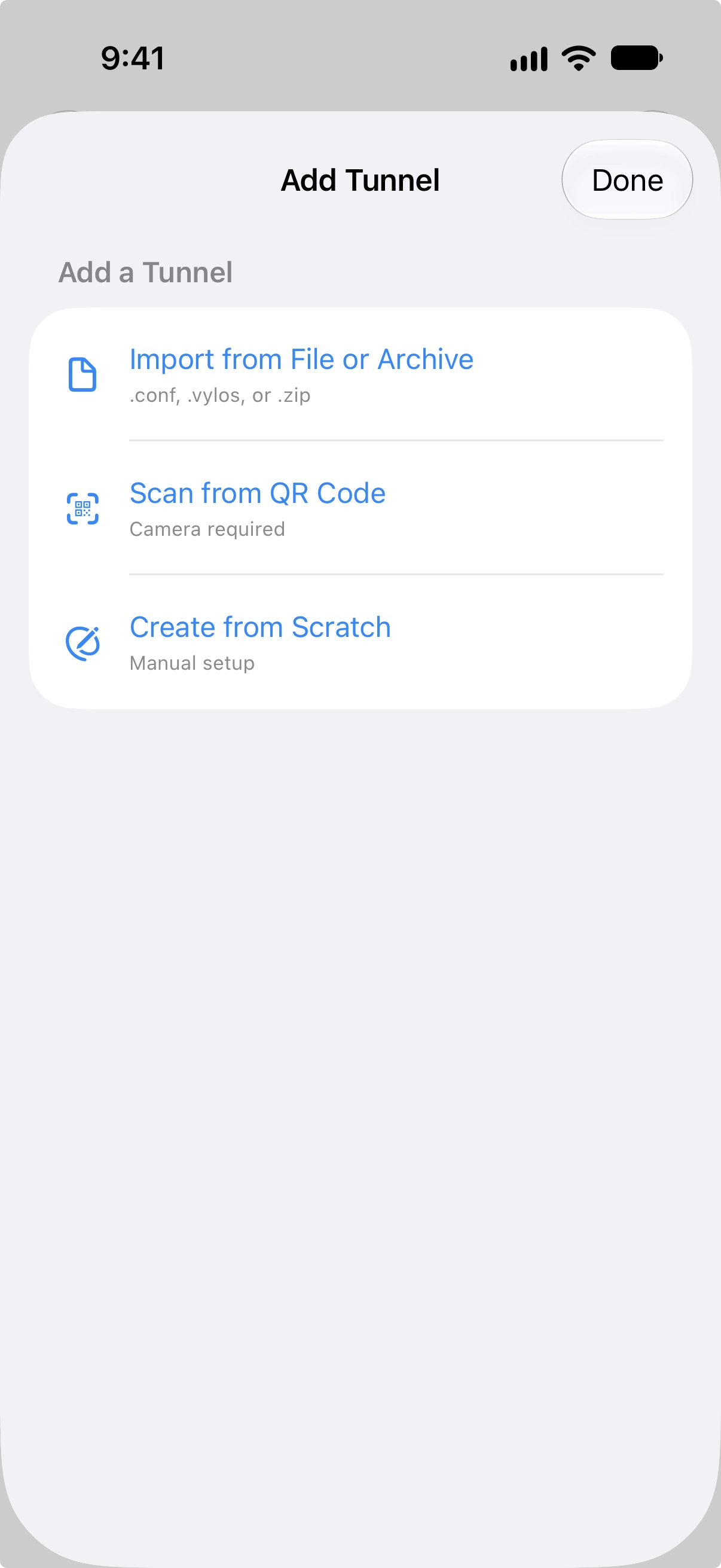
On iOS, you can also import files through the Share sheet or "Open In" menu. Vylos registers as a handler for .conf, .vylos, and .zip files, so these file types will show Vylos as an option when you tap Share or Open In from another app (for example, the Files app or a mail attachment).
Importing from a QR Code
QR code import is available on iOS. Tap the Add Tunnel button, choose Scan from QR Code, and point the camera at a code.
On macOS and visionOS, use file import or manual entry.
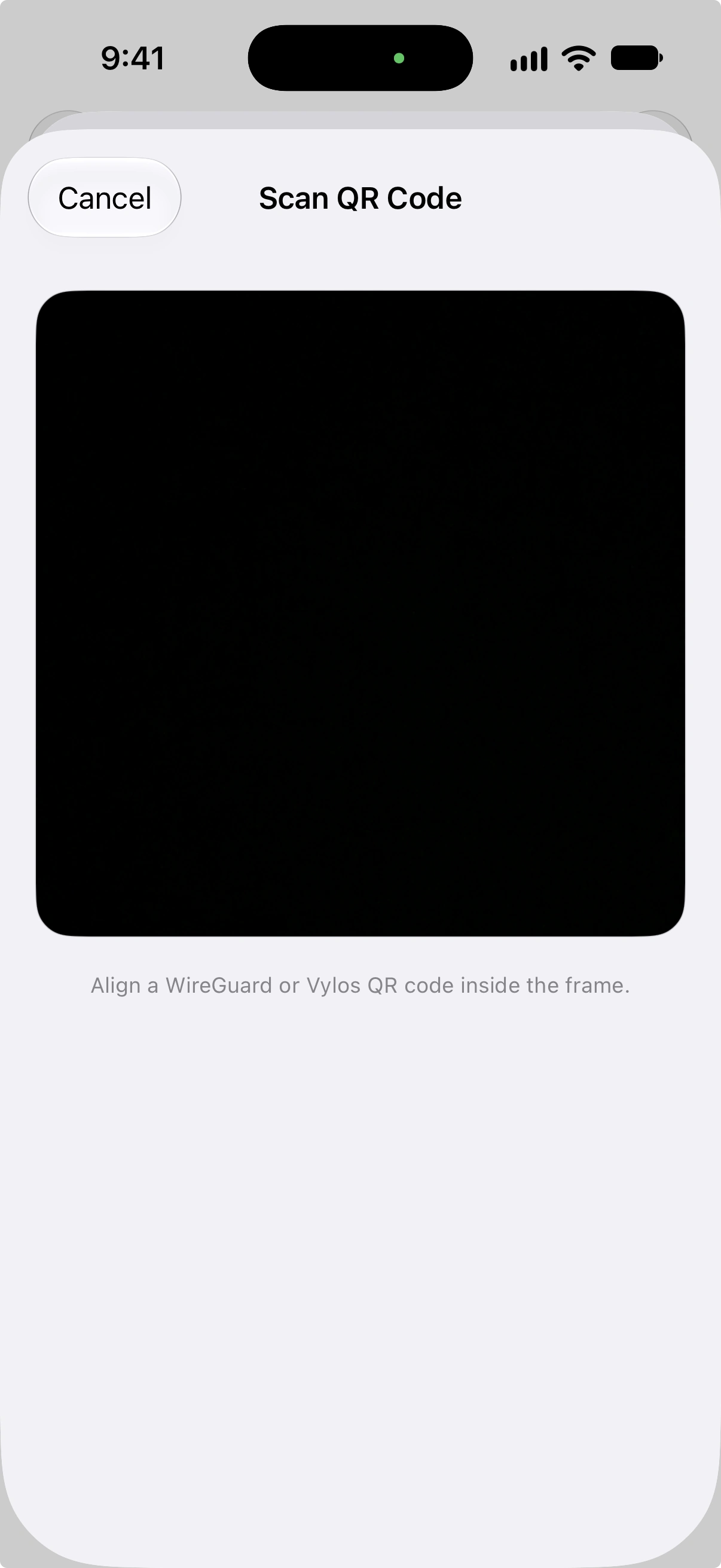
Vylos supports two QR code formats: standard WireGuard configuration text (plain .conf content) and Base64-encoded .vylos payloads. The app attempts to parse plain text first, then falls back to Base64 decoding.
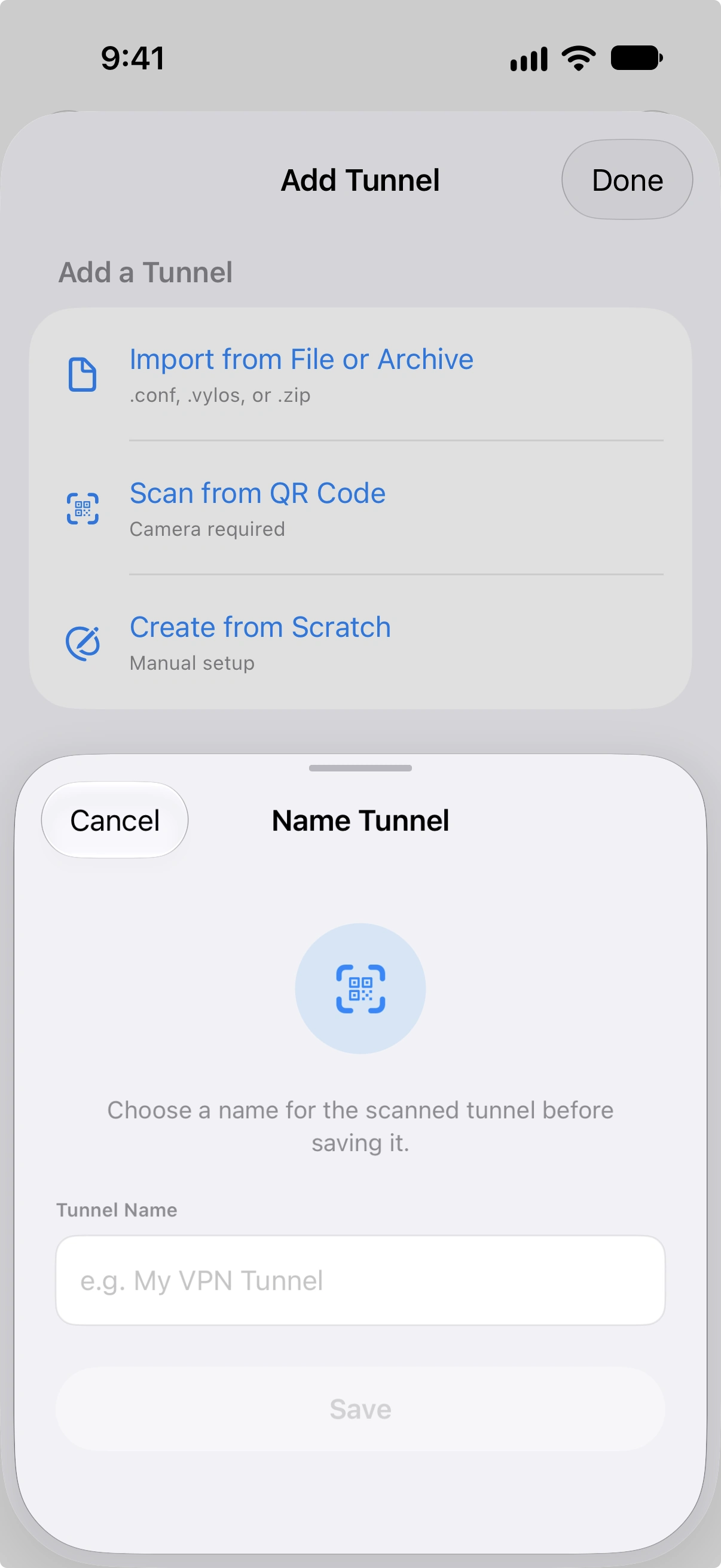
The maximum payload size for Base64-encoded content is 16 KB. After a successful scan, the app prompts you to enter a name for the tunnel before saving it.
macOS Add Tunnel Menu
On macOS the toolbar + button is a split menu rather than a single sheet, with two entry points:
| Item | Behavior |
|---|---|
| Add Manually… | Opens a focused sheet with the tunnel form. ⌘ N also routes here. |
| Import from File… | Opens the standard macOS Open panel filtered to .conf, .vylos, and .zip. Multi-pick is supported. |
The same actions are available from the File menu (New Tunnel… ⌘ N, Import… ⌘ O) so keyboard-only flows reach both entry points. macOS 12 uses its legacy toolbar style with the same focused manual-entry sheet and multi-file picker.
Drag and Drop Import (macOS)
On macOS 13 and later you can drop tunnel files anywhere they make sense:
- Sidebar — Drag one or more
.conf,.vylos, or.zipfiles from Finder onto the tunnel sidebar. While a compatible drag is held over the sidebar, an accent border highlights it; release the mouse and Vylos imports each file through the same flow used by Import from File…, including the multi-file results sheet. - Dock icon — Drop the same file types onto the Vylos Dock icon and Vylos opens (or comes forward) to import them. This works whether the app is already running or not.
Files with unsupported extensions are silently rejected — the cursor never shows the green "drop OK" badge for them, so it's clear the drop won't take effect. macOS 12 keeps the menu-driven import paths only; the sidebar drop target is unavailable on that release.
Batch Import
When you import a .zip archive, Vylos processes every configuration file inside it. After the import completes, a results screen shows the outcome for each file — whether it succeeded or failed — so you can identify and correct any issues.
Exporting Tunnels
Export creates a ZIP archive containing all of your user-created (app) tunnels. Managed tunnels installed by an Apple VPN profile, whether delivered by MDM or a .mobileconfig file, are not included in the export.
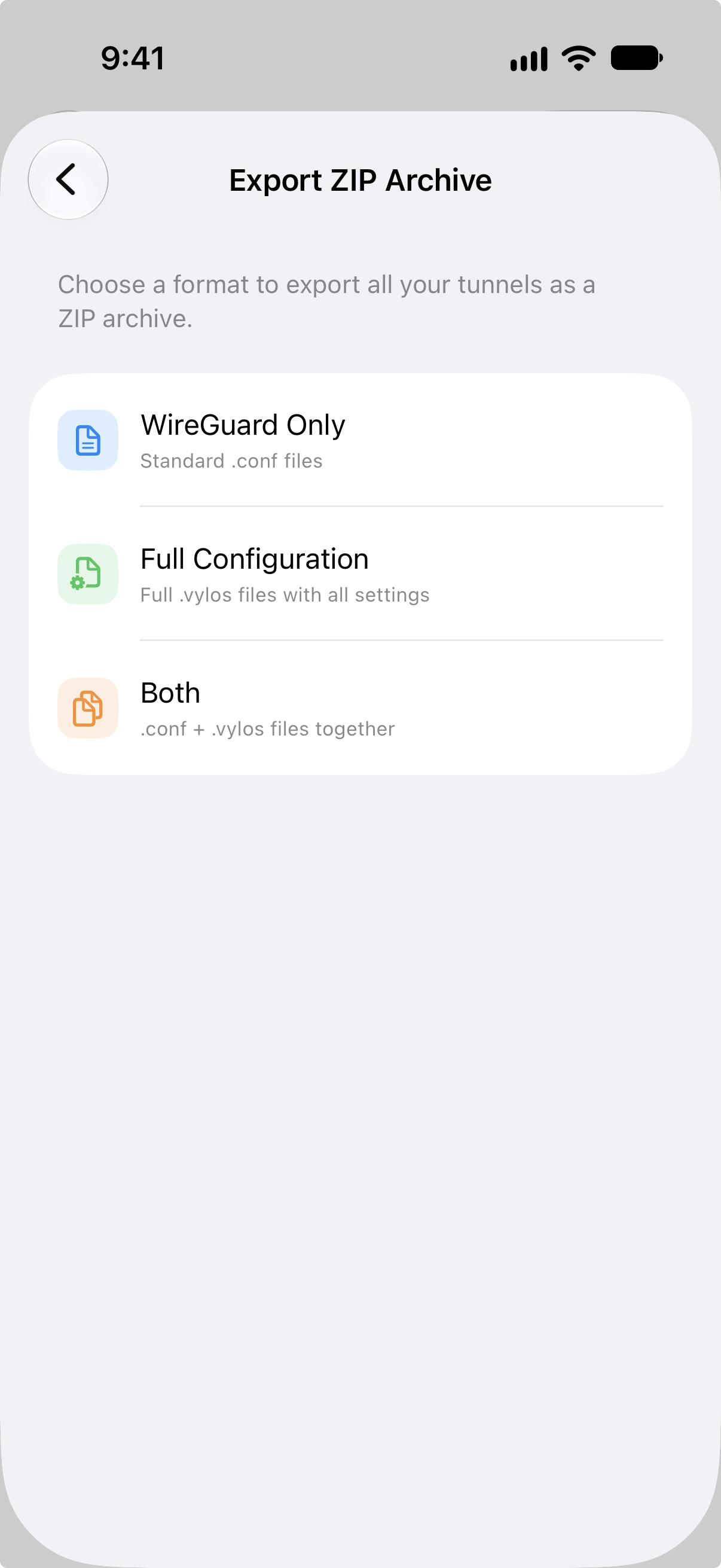
To export, go to Settings, then tap Export ZIP Archive under the Tools section. You'll be asked to pick an export format:
| Format | Contents |
|---|---|
| WireGuard Only | One .conf file per tunnel. |
| Full Configuration | One .vylos file per tunnel (includes split DNS and on-demand rules). |
| Both | One .conf file and one .vylos file per tunnel. |
Exported archives contain tunnel private keys and are not encrypted by Vylos. Store them securely and share them only with trusted recipients.
On macOS, a Save panel lets you choose where to put the archive. On iOS and visionOS, use the system sharing controls to save or send it.