Deploy Managed Tunnels
Deploy profile-controlled VPN tunnels through MDM or direct .mobileconfig installation so they appear as read-only managed tunnels in Vylos.
See .mobileconfig Profiles for complete device-wide and per-app payload examples.
How Managed Tunnels Appear
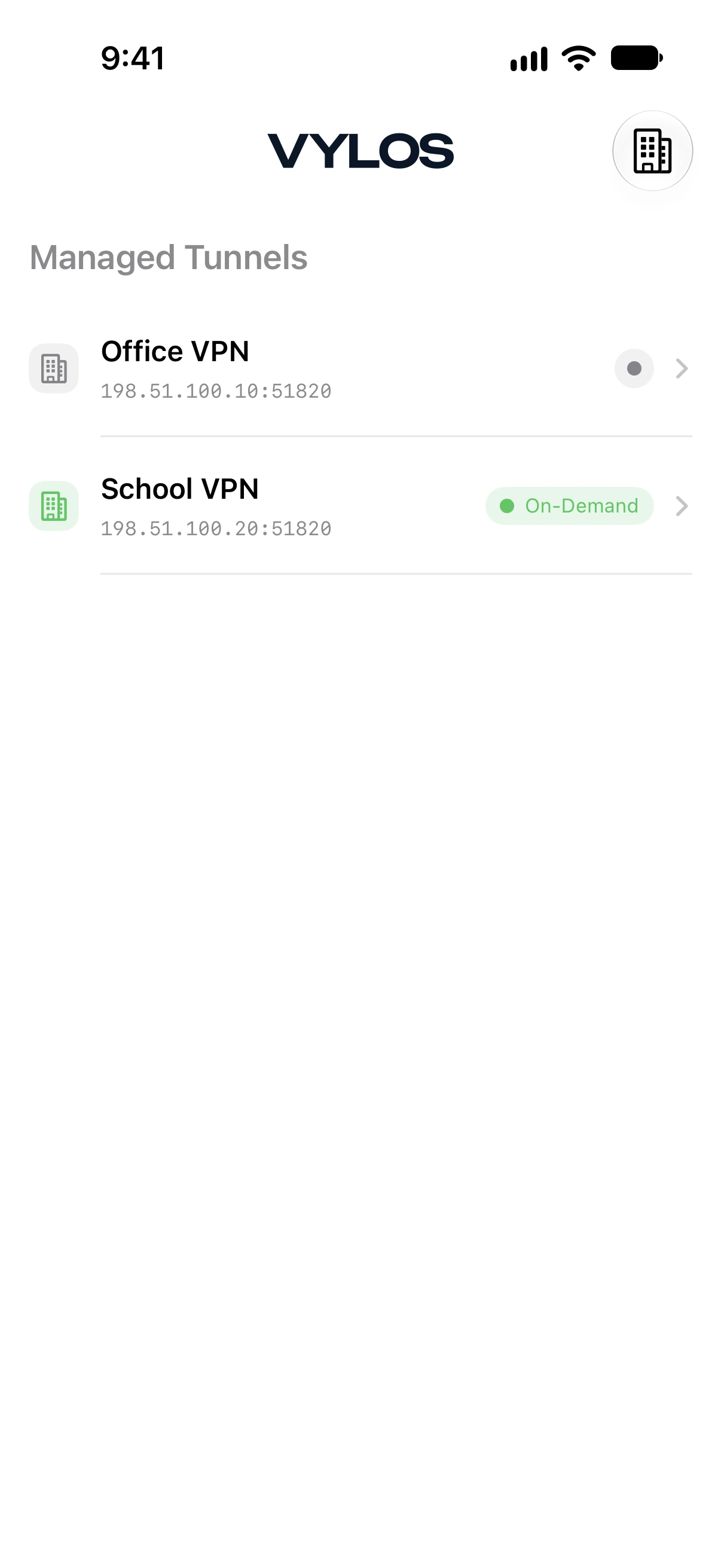
Managed tunnels are displayed in a separate "Managed Tunnels" section at the top of the Home tunnel list, above any user-created app tunnels. This visual separation makes it clear which tunnels are organization-managed and which were created by the user.
Read-Only Access
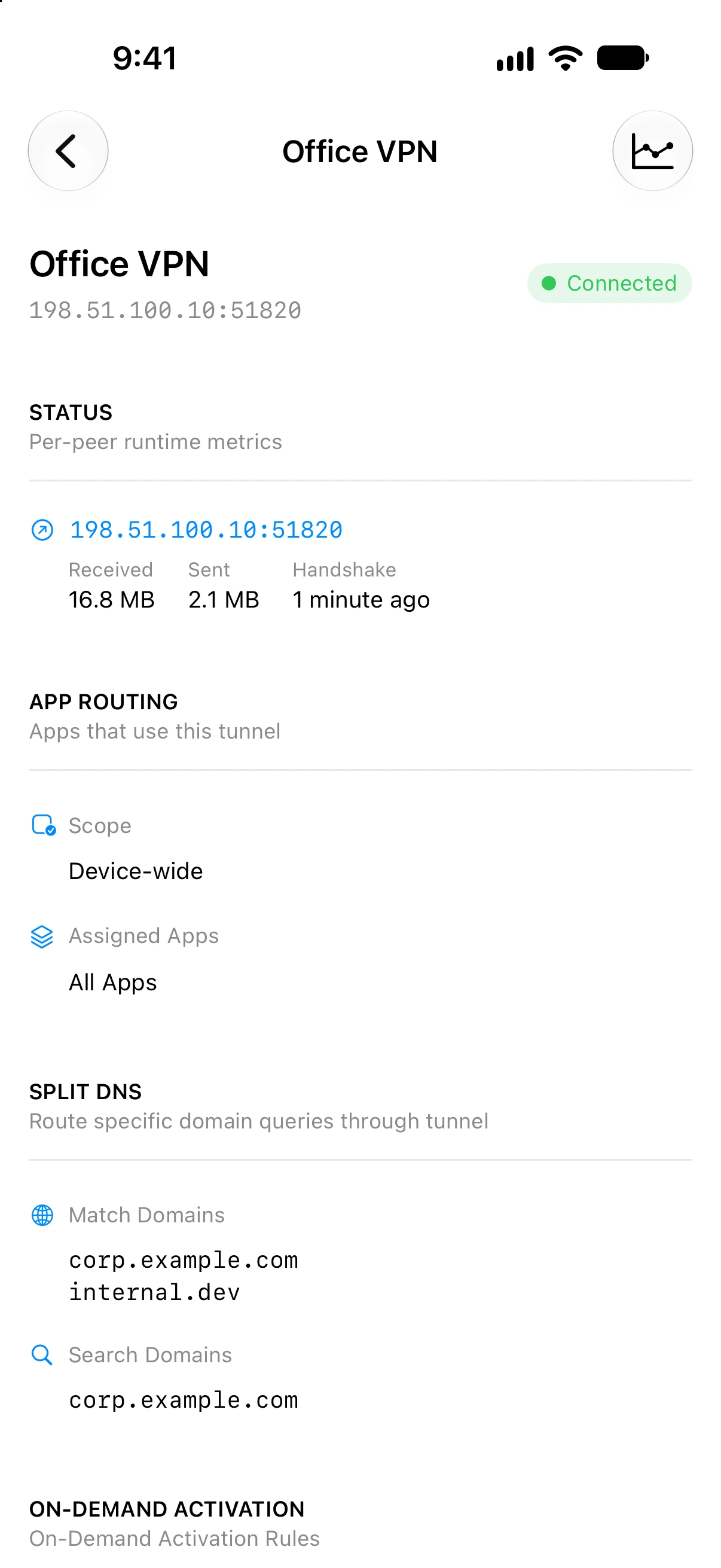
Managed tunnels are read-only within the app. Users cannot edit or delete them.
The tunnel detail view shows runtime statistics (when connected), bandwidth charts, split DNS settings, and on-demand activation rules. The WireGuard interface and peer configuration sections are not displayed for managed tunnels, and edit and delete buttons are not available.
To modify or remove a managed tunnel, update or remove the corresponding configuration profile. Use the MDM console for an MDM-delivered profile, or the device's profile-management settings for a directly installed .mobileconfig.
Connect and Disconnect
Managed tunnels don't have a user-facing toggle control in the tunnel list or detail view.
Users can turn the VPN connection on or off from Apple's Settings → VPN on iOS and visionOS or System Settings → VPN on macOS. On-Demand activation rules configured by the IT administrator can also control connection state.
Vylos displays the current status but doesn't provide manual connect or disconnect actions for managed tunnels.
On-Demand Rules, Kill Switch, and Split DNS
Managed tunnels support the same on-demand activation rules and split DNS features available to app tunnels:
- On-demand rules. Auto-connect behavior based on network type (cellular, Wi-Fi) with SSID whitelist and blacklist filtering.
- Kill switch. Apple's all-network routing policy for reducing traffic leaks if an armed tunnel becomes unavailable.
- Split DNS. Per-tunnel domain routing using match domains and search domains.
Configure On-Demand activation with Apple's OnDemandRules fields and the kill switch with Apple's VPN.IncludeAllNetworks field. Configure Split DNS inside VendorConfig with VylosConfigBase64 (recommended for MDM) or raw VylosConfig, using the same [SplitDNS] syntax as a .vylos archive's settings.conf. See Deploy with .mobileconfig Profiles for complete examples.
When VPN.IncludeAllNetworks is enabled, Vylos also evaluates the WireGuard AllowedIPs across every peer. The managed-tunnel detail reports whether the profile provides full IPv4 and IPv6 coverage, a restricted allowlist, or no outgoing routes, and warns when an interface DNS server falls outside the route set. The check is informational: Vylos does not modify managed profile values.
These settings can't be changed within Vylos, regardless of whether the profile arrived through MDM or direct .mobileconfig installation.
Visibility Under Restrictions
Managed tunnels are always visible regardless of the allowManualTunnels restriction key. When allowManualTunnels is set to false, the "My Tunnels" section is hidden, while the "Managed Tunnels" section continues to show deployment and connection status.
This ensures that organization-deployed VPN configurations are always accessible to the user, even when manual tunnel management is restricted.
Siri Shortcuts
Managed tunnels are never exposed to the Shortcuts app. Connect, Disconnect, Toggle, and Edit actions can target user-created tunnels only.
When Managed App Configuration is present, the app lock authentication requirement is bypassed for allowed shortcut actions on user-created tunnels. Siri Shortcuts require iOS 16.0 or later, macOS 13.0 or later, or visionOS 1.0 or later.