Preview Files with Quick Look
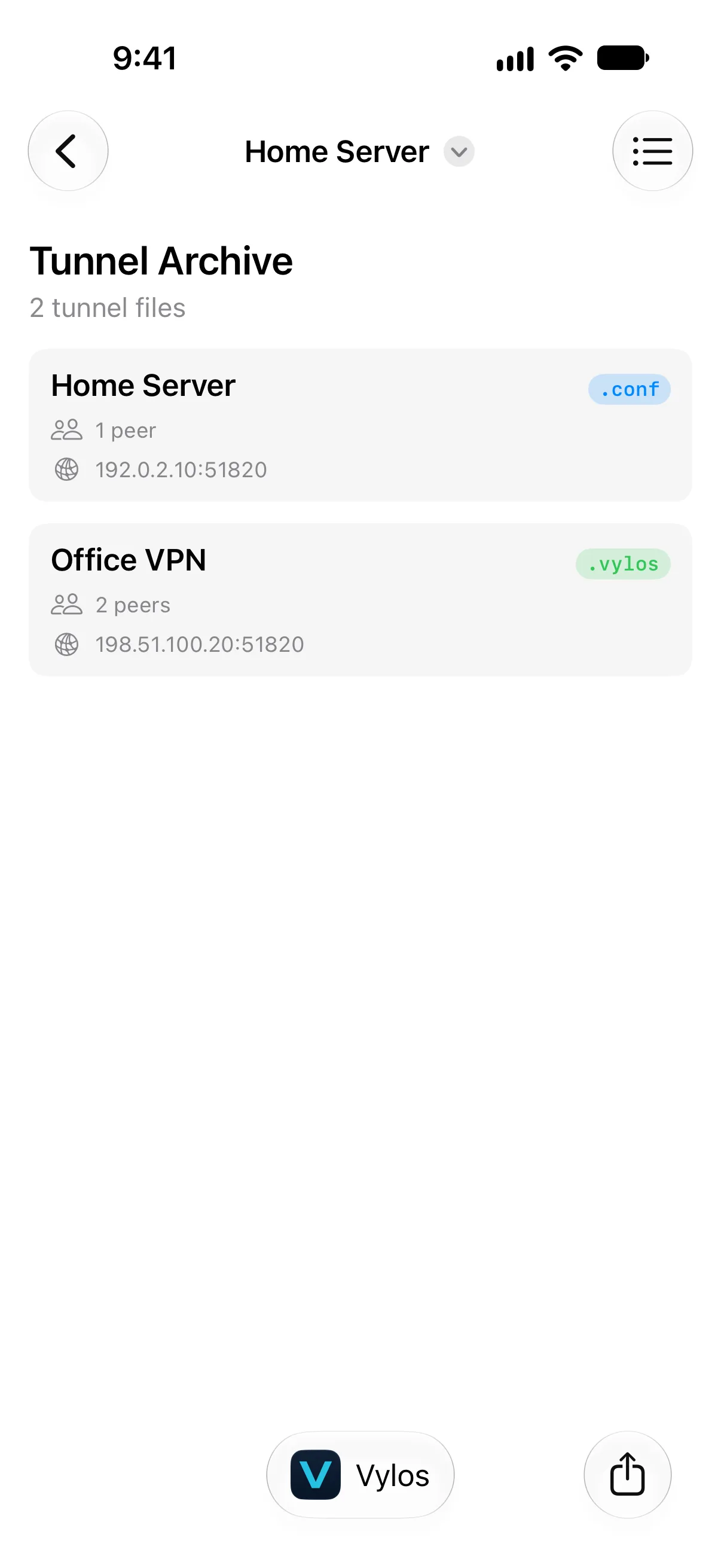
Preview .conf, .vylos, and .zip tunnel files in Finder on macOS and the Files app on iOS with a Quick Look extension that shows the tunnel name, peer count, and primary endpoint before importing.
Preview a File
iPhone and iPad
Open the Files app, locate a .conf or .vylos file, and tap it to open the preview pane. Vylos renders the tunnel summary alongside the file metadata.
For a .zip archive, long-press it and choose Quick Look. Files first shows Apple's archive cover; select Preview Content to open the Vylos preview containing every supported tunnel in the archive.
The system title may use the first contained filename even though the Vylos content represents the complete archive.
Mac
Select a .conf or .vylos file in Finder and press Spacebar. Press Spacebar again to close the preview.
For .zip archives, Apple's built-in ZIP preview takes precedence. Select Open With → Vylos Quick Look from the contextual menu to open the Vylos preview.
Platform Support
| Platform | Minimum version | Surface |
|---|---|---|
| iPhone and iPad | iOS / iPadOS 15 | Files app preview |
| Mac | macOS 12 | Finder Spacebar preview |
The Vylos preview extension is unavailable on Apple Vision Pro.
What Gets Shown
Each tunnel summary in the preview shows:
- Name — The tunnel name parsed from the file.
- Peer count — The number of
[Peer]sections in the configuration. - Primary endpoint — The first peer's
Endpoint =value, when present.
When you preview a .zip archive that contains multiple tunnels, Vylos lists every contained .conf and .vylos file independently. Files that fail to parse appear under Parsing issues in that Quick Look preview, so you can spot a malformed entry without importing the archive.
Privacy
Quick Look previews run inside a tightly sandboxed extension that has no access to the App Group container, your Keychain, or the live tunnel list. The extension parses the file you previewed and renders the result — nothing about your existing tunnels leaves your device.