Manage Tunnels
Create, view, edit, and delete WireGuard VPN tunnels using the Vylos home screen and tunnel detail views.
Home Screen Layout
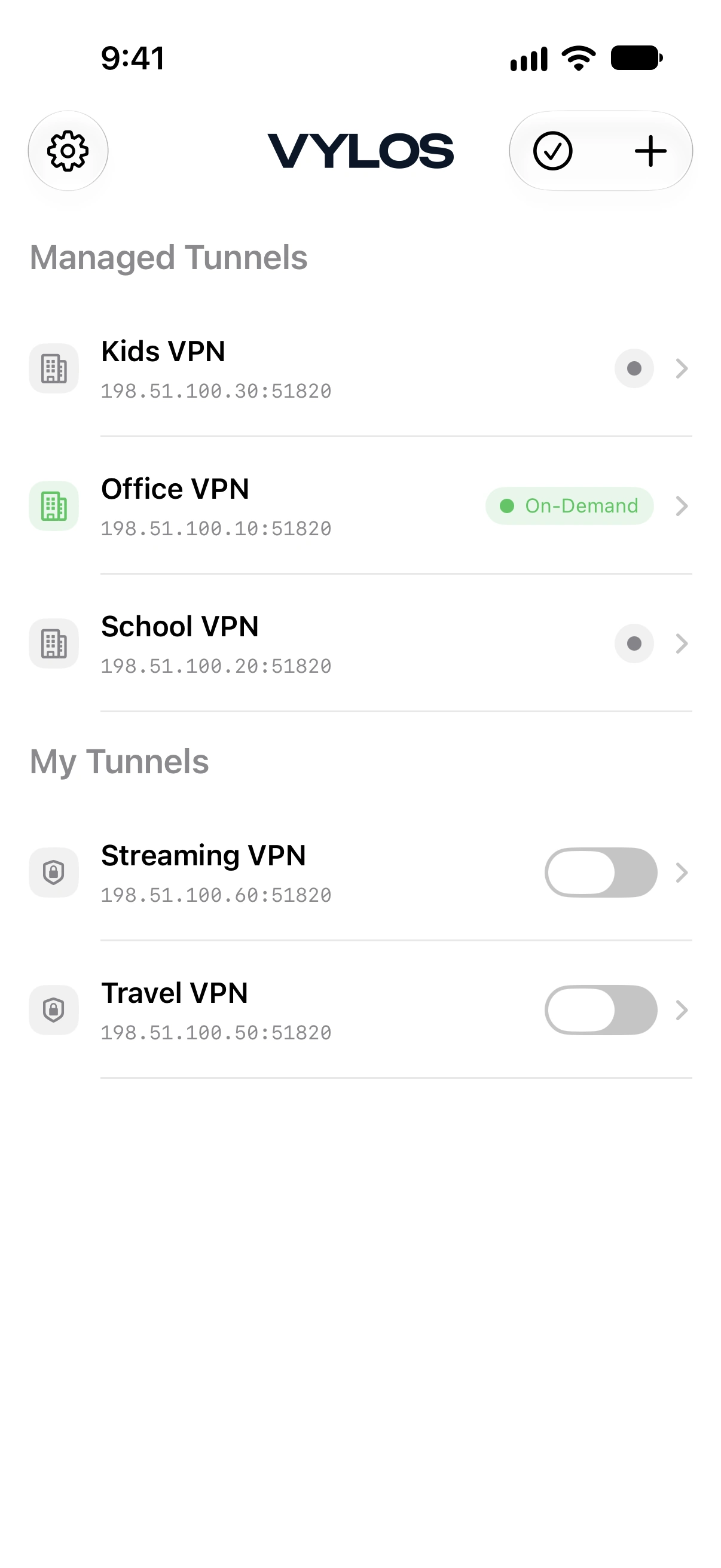
The home screen displays your tunnels in up to two sections:
- Managed Tunnels — Tunnels installed by an Apple VPN configuration profile, delivered through MDM or a
.mobileconfigfile. These are read-only; you cannot edit or delete them. - My Tunnels — Tunnels you have created or imported. You can edit, delete, and toggle these tunnels freely.
Tunnel Status
Each tunnel displays a status indicator. Standard tunnels (without on-demand rules) show the following statuses:
| Status | Color | Meaning |
|---|---|---|
| Connected | Green | The tunnel is active and carrying traffic. |
| Connecting | Light green | The tunnel is in the process of activating. |
| Disconnecting | Light green | The tunnel is in the process of deactivating. |
| Disconnected | Gray | The tunnel is not active. |
On-Demand Status Presentation
Vylos does not append “(On-Demand)” to ordinary connection states. The Home list keeps On-Demand as the summary label in both resting states: yellow means the tunnel is armed but idle, while green means it is armed and currently connected.
The tunnel detail screen is more explicit, using On-Demand for the yellow idle state and Connected for the green active state.
| Tunnel state | Home summary | Detail label | Meaning |
|---|---|---|---|
| Rules enabled; no matching trigger | On-Demand (yellow) | On-Demand | The tunnel is armed and waiting for a matching network or assigned app. |
| Activating | Connecting | Connecting | The operating system is starting the tunnel. |
| Active | On-Demand (green) | Connected | The tunnel is connected and routing eligible traffic. |
| Deactivating | Disconnecting | Disconnecting | The operating system is stopping the current connection. |
| Rules disabled; inactive | Disconnected (gray) | Disconnected | Automatic activation is off and the tunnel is not connected. |
| Reasserting | Reasserting | Reasserting | The connection is re-establishing after a network change. |
| Restarting | Restarting | Restarting | Vylos is restarting the provider after a configuration change. |
| Waiting | Waiting | Waiting | The activation request is queued behind another tunnel or system transition. |
info
An armed tunnel showing On-Demand is normal. It will connect automatically when its configured network rule or managed-app trigger matches.
See Set Up On-Demand for details.
Connecting and Disconnecting
Tunnels in the "My Tunnels" section can be toggled on and off. In the detail view, a toggle control lets you connect or disconnect the tunnel.
For on-demand tunnels, the toggle enables or disables the on-demand rules rather than directly connecting or disconnecting.
Managed tunnels do not have a toggle inside Vylos. Users can turn them on or off from Apple's VPN settings, and on-demand rules in the Apple VPN configuration profile can control them automatically.
Viewing Tunnel Details
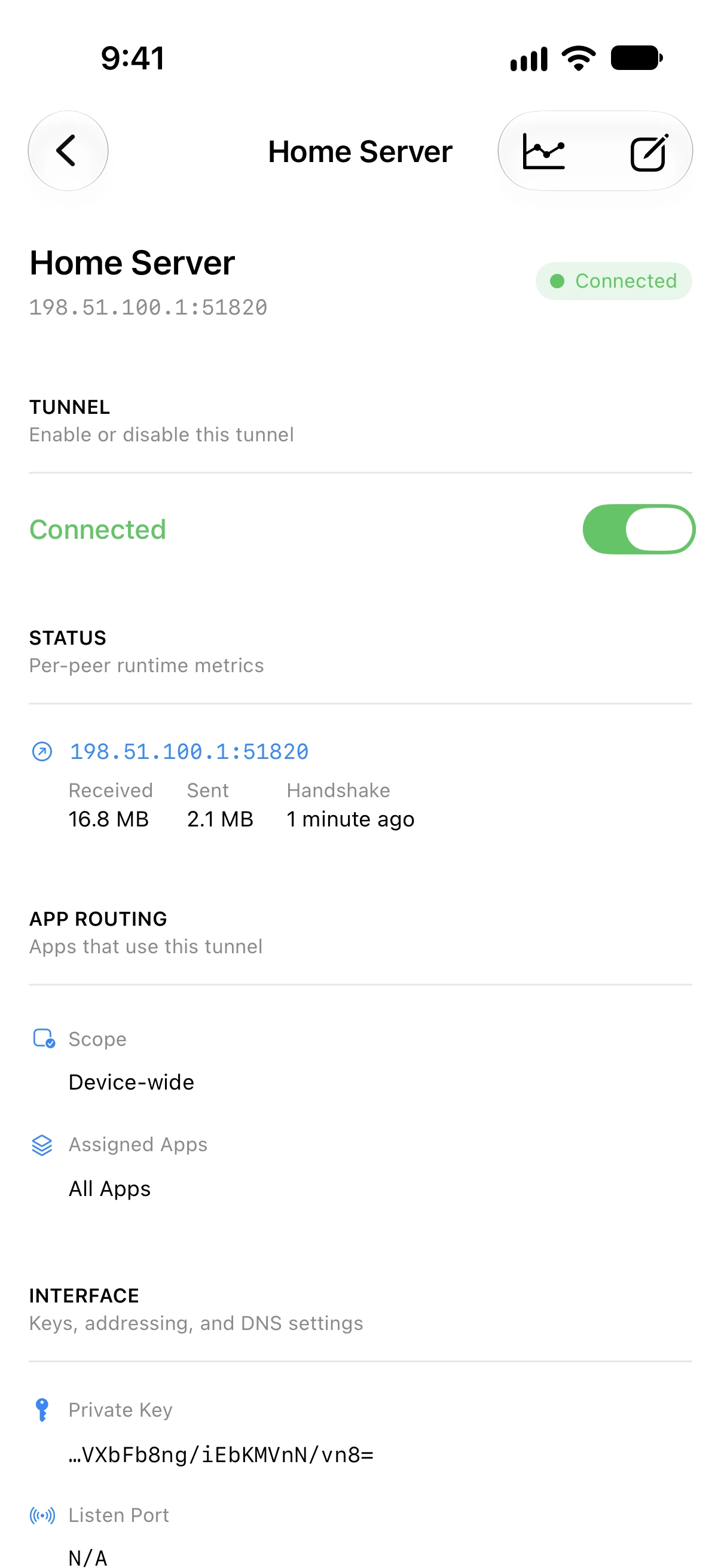
Tap a tunnel row to open its detail view. The detail screen shows a summary header with the tunnel name, endpoint, and a status pill.
The sections displayed depend on the tunnel source.
info
On macOS, the detail surface has Overview and Bandwidth tabs (⌘ 1–2). Overview combines status and configuration, while app and WireGuard logs live in Settings.
Editing opens a separate window on macOS 14+ or a sheet on macOS 12 and 13. See Vylos on macOS → Detail Pane for the full Mac-specific layout.
Sections Shown for All Tunnels
The following sections are shown for both app tunnels and managed tunnels:
Status. When a tunnel is connected and a handshake has been established, per-peer runtime statistics are displayed:
- Received — Total bytes received.
- Sent — Total bytes sent.
- Handshake — Relative timestamp of the most recent WireGuard handshake (e.g., "2 minutes ago").
For both tunnel types, Vylos refreshes these statistics automatically every second while the tunnel is active or armed for On-Demand and its detail view is open.
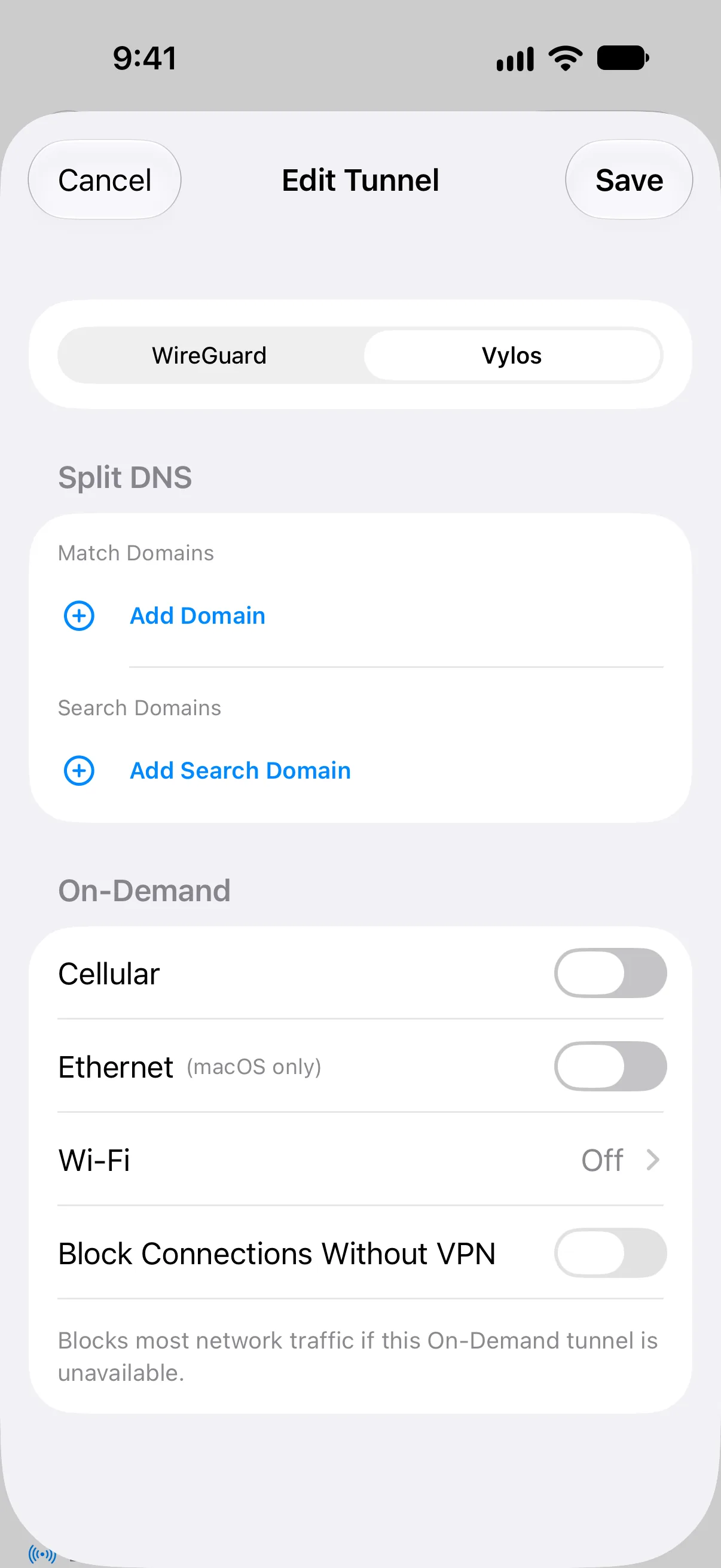
Split DNS. Shows the configured match domains and search domains for the tunnel.
On-Demand Activation. Shows the configured cellular, Ethernet, and Wi-Fi activation rules with platform availability annotations.
Sections Shown for App Tunnels Only
The following sections are only visible for tunnels in the "My Tunnels" section. Managed tunnels do not display these sections.
Tunnel. A toggle control for connecting or disconnecting the tunnel.
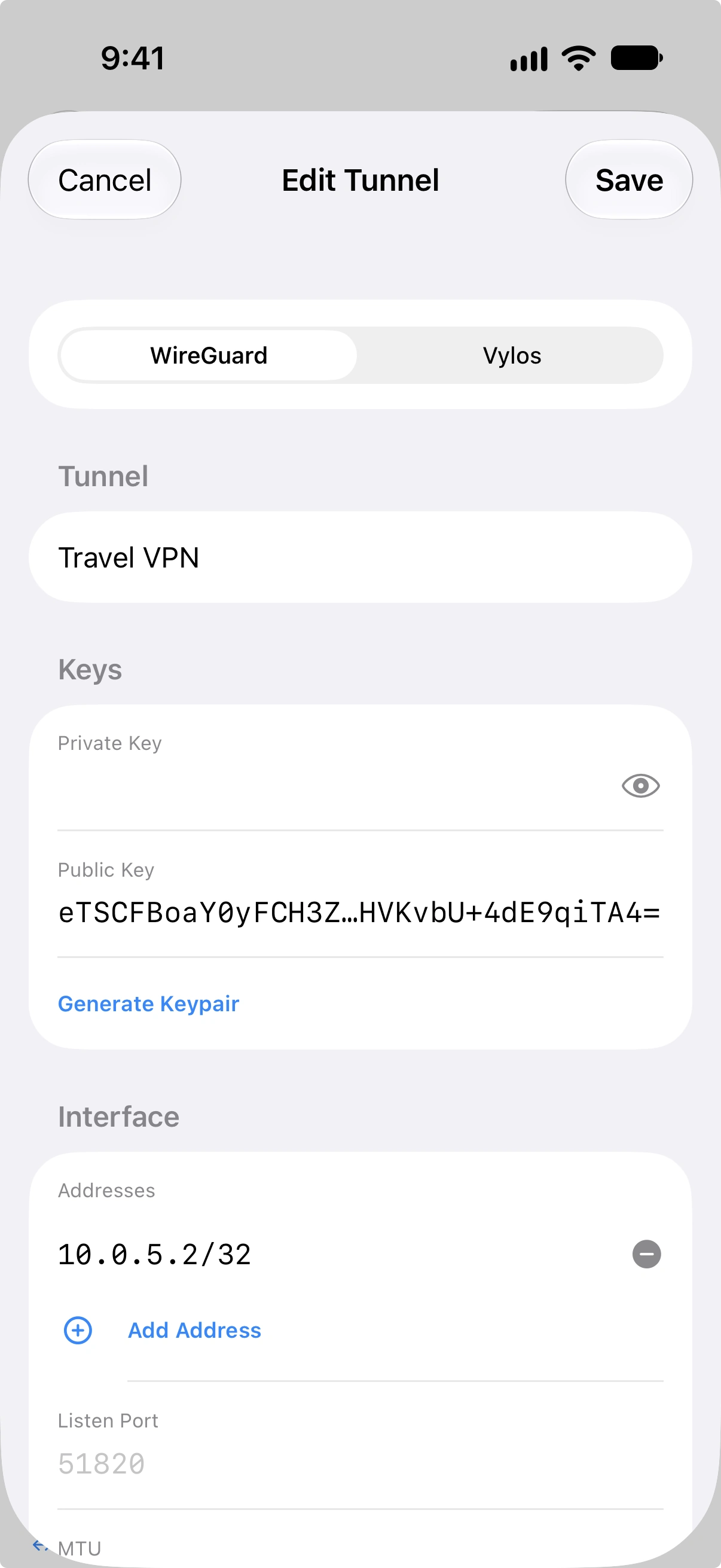
Interface. The WireGuard interface configuration:
- Private Key — The tunnel's private key (displayed truncated; tap to copy the full key).
- Listen Port — The UDP listen port, if configured.
- Address — The IP addresses assigned to the tunnel interface.
- DNS — The DNS servers used when the tunnel is active.
- MTU — The maximum transmission unit, if configured.
Peer. For each peer, the detail view shows:
- Public Key — The peer's public key (displayed truncated; tap to copy).
- Preshared Key — The preshared key, if configured (displayed truncated; tap to copy).
- Endpoint — The peer's address and port.
- Allowed IPs — The IP ranges routed through the peer.
- Persistent Keepalive — The keepalive interval (e.g., "Every 25 seconds"), if configured.
Delete Tunnel. A destructive button to delete the tunnel, with a confirmation prompt.
The toolbar also includes a bandwidth chart button (shown for both app and managed tunnels) and an edit button (shown only for app tunnels).
Editing Tunnels
Only tunnels in the "My Tunnels" section can be edited. Managed tunnels are read-only.
To edit a tunnel, open its detail view and tap the edit button in the toolbar. The edit form lets you modify all WireGuard fields (interface settings and peer settings) as well as Vylos-specific settings including split DNS and on-demand activation rules.
On visionOS, tapping Edit on the contextual ornament beneath the detail pane opens the editor in its own free-floating window in space. Each editor lives in a dedicated window scene so multiple tunnels can be edited side by side without losing each other's draft state.
warning
Tunnel names have a maximum length of 253 characters. Names that exceed this limit will be rejected by the form.
Deleting Tunnels
There are two ways to delete tunnels from the "My Tunnels" section:
- Swipe to delete — Swipe a tunnel row to the left and tap the Delete button.
- Bulk delete — Tap the selection button in the toolbar to enter selection mode. Select one or more tunnels, tap Delete Selected, and confirm the deletion when prompted.
danger
Deleting a tunnel removes it permanently. Managed tunnels cannot be deleted from within the app.
Pull to Refresh
Pull down on the tunnel list to synchronize the displayed state with the system VPN configuration. This is useful if a tunnel's status has changed outside the app.
Home Screen Quick Actions (iOS)
On iOS, Vylos registers up to four home screen quick actions based on your most recently used tunnels in the "My Tunnels" section. Long-press the Vylos app icon on the home screen to see these shortcuts — tapping one toggles that tunnel on or off.