Vylos on Apple Vision Pro
Manage self-hosted WireGuard tunnels on Apple Vision Pro through a spatial interface with manual entry, file import, on-demand rules, and app lock.
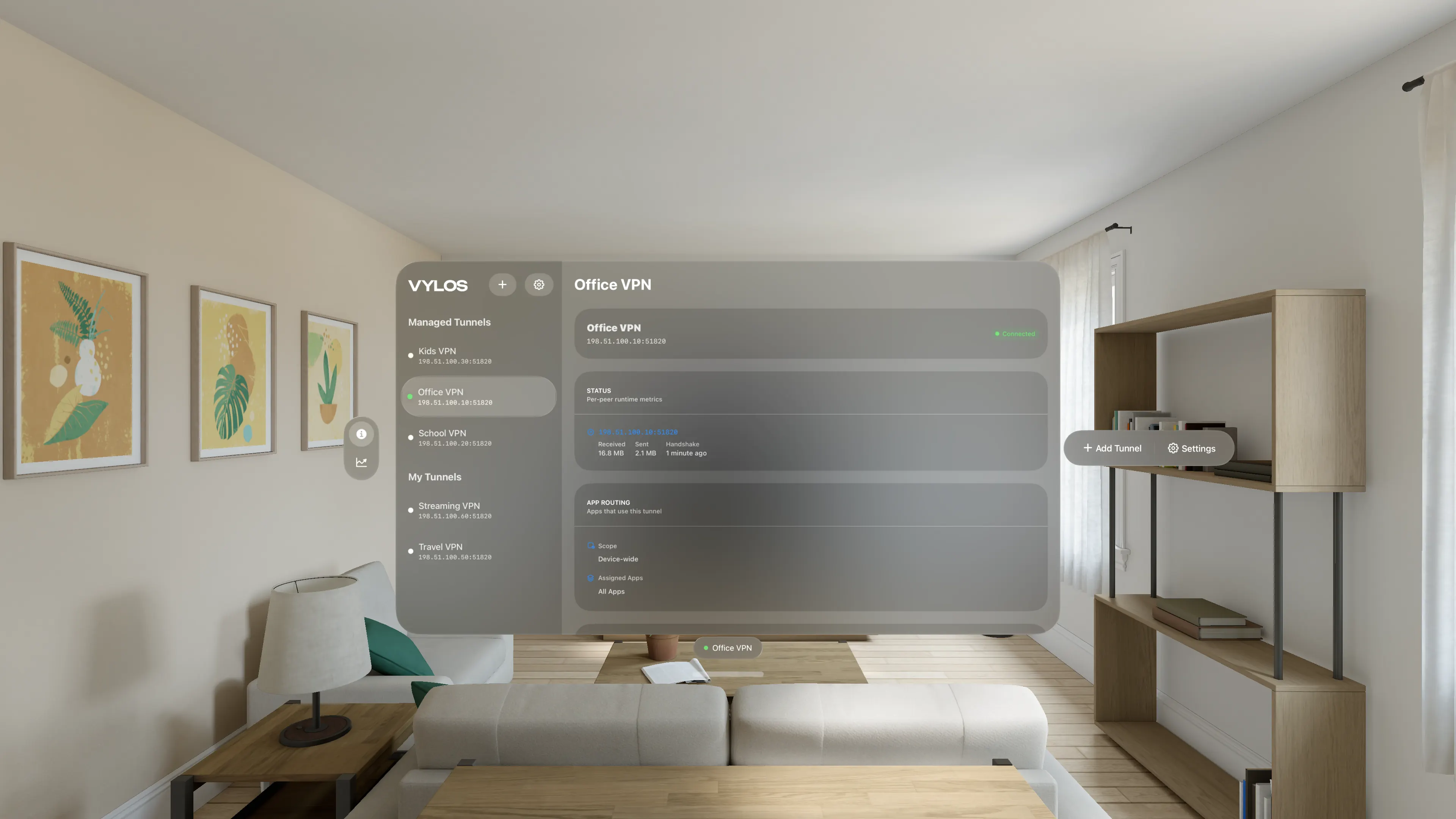
Navigate Tunnels
The main window pairs a tunnel sidebar with a detail pane. The VYLOS wordmark identifies the sidebar, a bottom ornament summarizes active tunnels, and a trailing ornament holds Add Tunnel and Settings.
The sidebar warns when enabled tunnels have overlapping on-demand rules. Selecting a user-created tunnel also shows a contextual ornament with Connect or Disconnect, Edit, and Delete actions.
Managed tunnels remain read-only.
Add, Import, and Export
Choose Add Manually… to open the tunnel form in a glass panel, or Import from File… to select one or more .conf, .vylos, or .zip files. Import results appear in a matching glass panel.
QR code scanning is unavailable on visionOS.
To export, open Settings > Export ZIP Archive, choose .conf, .vylos, or both formats, then use the system sharing controls to save or send the archive.
For configuration formats and batch imports, see Import and Export Tunnels.
Inspect a Tunnel
The detail pane has two tabs: Overview, which combines connection status, peer metrics, and tunnel settings; and Bandwidth, which shows 24-hour and 30-day charts. Bandwidth charts are available on visionOS 1.0 and later.
App and WireGuard diagnostics are available from Settings > View Logs.
Edit and Settings Windows
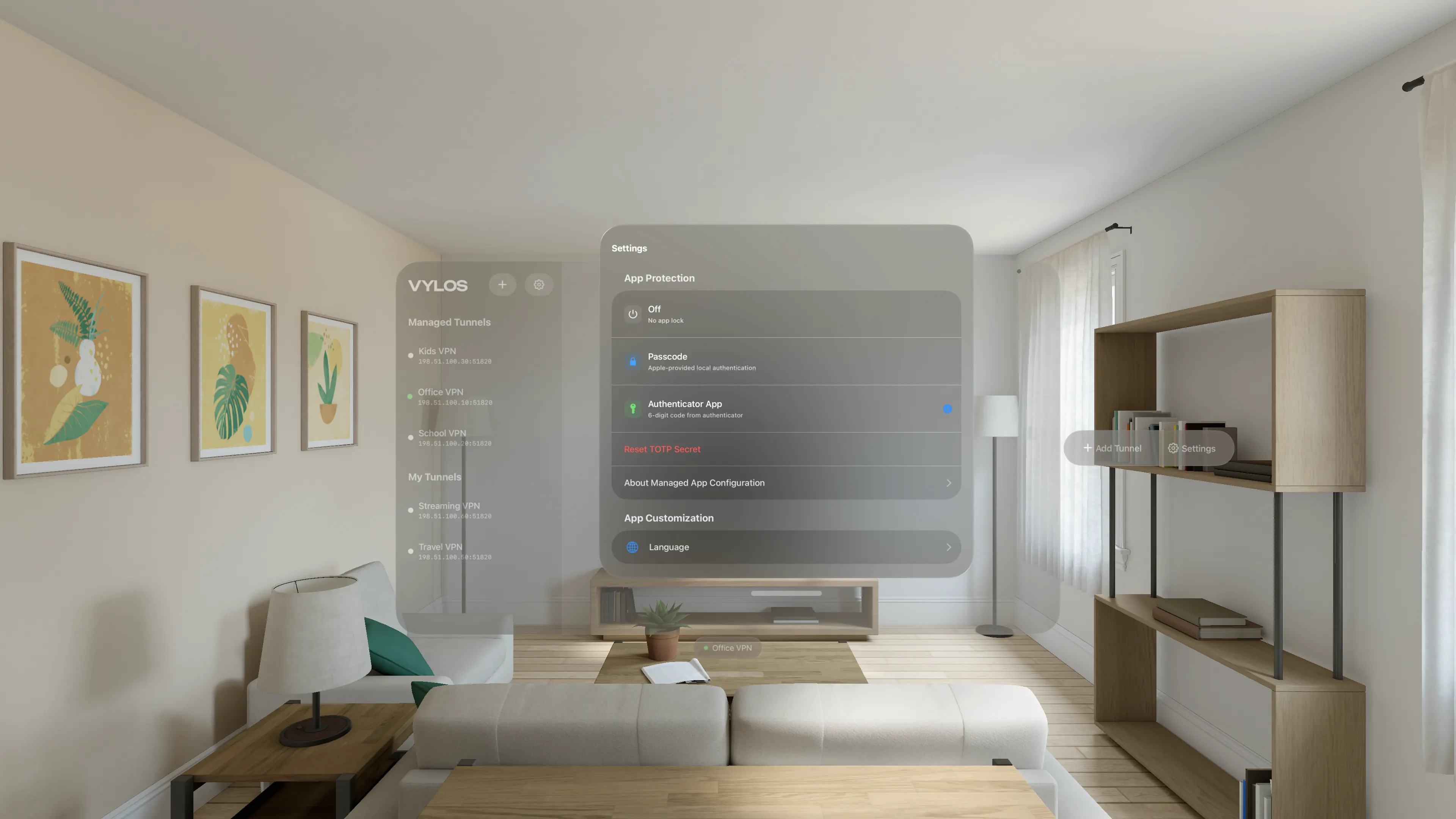
Settings opens in a separate window. Edit opens a dedicated editor window for the selected user-created tunnel, so you can place multiple editors side by side in space.
Engaging App Lock dismisses open editor windows. The Settings window includes a Managed Configuration Info panel when the app is provisioned by MDM.
Platform Differences
visionOS supports Optic ID with passcode fallback, TOTP app lock, Siri Shortcuts, and Spotlight tunnel search. It has no QR scanner, alternate app icons, or Home Screen quick actions.
visionOS also has no distinct Light or Dark mode, so Vylos uses native adaptive system glass instead of exposing an Appearance selector. If MDM supplies the shared appearance key, the Managed Configuration pane shows the requested value for reference but does not apply it.
For minimum OS versions and feature gates, see Feature Compatibility.